Mesh Swap (Legacy)
This method creates a fixed mesh and swaps it into the avatar.
It uses the same workflow as 2.x.
Use it without NDMF or when combining Avatar Blink Fix with Avatar Mouth Fix.
Otherwise, the right-click Auto Fix is recommended.
① Open the window
Open Tools → Avatar Blink Fix from Unity's top menu.
- Select the [Mesh Swap (Legacy)] tab
- Drag your avatar from the Hierarchy into [① Avatar Prefab]
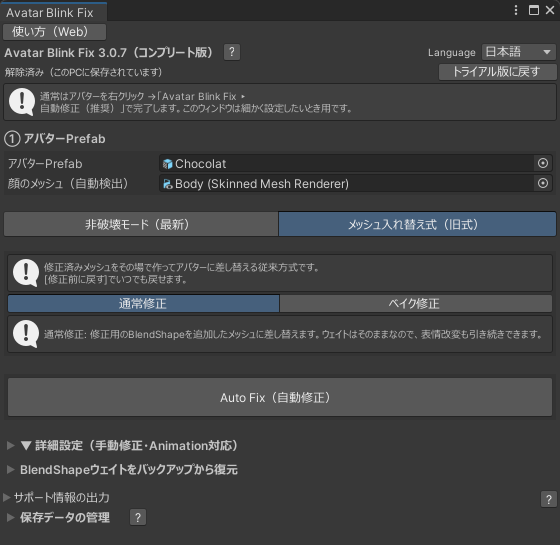
② Fix the blink
With a preset
Select the avatar in the preset field and press [Auto Fix].
Without a preset
Select items in [③ BlendShapes Deforming Eyes] and [④ BlendShapes to Fix], then run the fix.
Choose the same types of items described in Manual Fix.
When the fix finishes, the face mesh is replaced with the fixed version.
For expression animation checks and uploading, follow step ③ onward in The Full Workflow.
Restoring the avatar
Press [Restore Original] in the window.
To redo expression edits, restore first, edit the expression, then apply the fix again.
Fix records are saved per avatar name.
Before duplicating or renaming an avatar, press [Restore Original].
Apply the fix again after duplicating or renaming it.
Restore the avatar before deleting its record from [Saved Data] as well.
Deleting the record while the mesh is still fixed removes the original mesh location, so the tool can no longer restore it.
When combining with Avatar Mouth Fix
Apply Normal Fix in Mesh Swap first, then use Avatar Mouth Fix.
Combining it with non-destructive fixes or Bake Fix is not supported.
If Avatar Mouth Fix is installed, the right-click [自動修正(推奨)] (Auto Fix – Recommended) asks whether you want to use both tools.
- [Use Mouth Fix too]: Runs Normal Fix in Mesh Swap
- [Use Blink Fix only]: Runs the usual non-destructive fix
Other features
Bake Fix
Mesh Swap can also bake the edited expression before fixing.
This may reduce breakage caused by conflicts with expression animations.
Note: Bake Fix is a Complete Edition feature. Use Normal Fix when combining with Avatar Mouth Fix.
⑤ Fine-tune mode
Adjust the fix result for each BlendShape.
Settings can be exported to and imported from JSON for use with another edited avatar.
⑥ Blink animation combine
Combine blinking with expression animations.
See Merging Blinks into Expression Animations for the steps.