Coming from 2.x (Migrating to 3.0)
3.0 uses an unlock key system.
Without an unlock key, it runs as the free Trial Edition.
If you already use 2.x, download the unlock key from the Avatar Blink Fix page on BOOTH and import it to activate the Complete Edition.
Once imported, it works across all projects on the same PC.
2.x owners pay nothing extra.
After importing 3.0, use the unlock key available on the same purchase page.
When "Older Avatar Blink Fix detected" appears
This dialog appears when you install 3.0 in a project that already has 2.x.
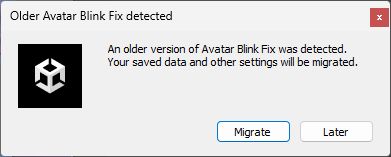
Choose [Migrate] to use the features of 3.0 while keeping your existing data and settings.
If you choose [Later]
You can migrate later from Tools → Avatar Blink Fix → [Migrate to the new version].
What changed in 3.0
① VPM repository support (install directly in VCC / ALCOM)
No more re-importing a unitypackage for every update.
Add the repository once, and from then on a new version is just an "Update" button away.

→ See Installation.
The classic unitypackage is still bundled too.
② A new way to fix
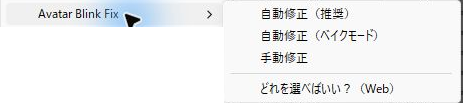
Right-click your avatar in the Hierarchy and choose [Avatar Blink Fix] → [自動修正(推奨)] (Auto Fix – Recommended).
An Avatar Blink Fix object is added inside the avatar, and the BlendShapes are fixed.
① Right-click your avatar in the Hierarchy.
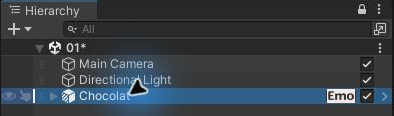
② Choose [Avatar Blink Fix] → [自動修正(推奨)] (Auto Fix – Recommended).
To restore the avatar to its state before the fix, delete the added Avatar Blink Fix object.
When redoing your expression edits
Delete the Avatar Blink Fix object or turn the preview OFF in its Inspector before editing your expression.
When you're done, run Auto Fix again if you deleted the object, or press [Reload Expression] if you turned the preview off.
When creating or editing expression animations with FaceEmo or a similar tool, turn the preview ON so you can work while seeing the fixed result.
You can still use the previous method
You can still open the window from Tools → Avatar Blink Fix and fix your avatar as before.
Switching a 2.x-fixed avatar to the non-destructive method (NDMF)
Right-click the avatar and choose [Avatar Blink Fix] → [自動修正(推奨)] (Auto Fix – Recommended).
If "Detected a 2.x Fix" appears, choose [Restore & Migrate].
The tool automatically undoes the 2.x fix, adds an Avatar Blink Fix object, and fixes your expression using the non-destructive method (NDMF).
③ A new fix method: Bake Mode
Bake Mode may reduce breakage caused by conflicts with expression animations.
Try it when using your avatar's default expression animations unchanged, or when your avatar uses specialized animations such as those for face tracking.
It bakes your edited expression into the mesh as the shape shown when the BlendShape values are 0, then applies the fix.
See the Auto Fix (Bake Mode) page for details.
Use normal Auto Fix for a workflow closer to the previous version.
If your avatar's eyes look wrong when animations play in-game, try switching to Bake Mode.
Going back to 2.x
Don't install 2.x while 3.0 is still present
Duplicate classes and assemblies can stop Unity from compiling.
Remove 3.0 first.
- While 3.0 is still installed, delete the child objects it added under your avatar, then save the scene/prefab
(default names: "Avatar Blink Fix (NDMF)", "Avatar Blink Fix (NDMF・トライアル)", "Avatar Blink Fix (Bake)".
Removing them first avoids leftover Missing Scripts) - Close Unity
- In VCC / ALCOM's Manage Project, remove Avatar Blink Fix 3.0 — do this first
- Open the project in Unity and import the final 2.x unitypackage from the Avatar Blink Fix page on BOOTH
- Leave
Data,Animation,jsonand the unlock key in place
Data and Animation hold your 2.x fix records.
A 3.0 unlock key that's already imported doesn't affect 2.x in any way.