Auto Fix (Bake Mode)
Bake Mode reconstructs your edited expression as the shape at BlendShape value 0.
This makes the edited expression the default expression, which may reduce breakage caused by animation conflicts.
Bake Mode does not automatically repair values or movements in existing expression animations.
You may still need to adjust the animations after baking. See the FAQ for details.
You can also use it for expression edits with values above 100 or negative values.
Note: Bake Mode is a Complete Edition feature.
When to use it
- You use face tracking
- You want to keep the avatar's original expression animations unchanged
- The eyes look wrong in-game when using Auto Fix (Recommended)
- Your expression edits use values above 100 or negative values
① Set up Bake Mode
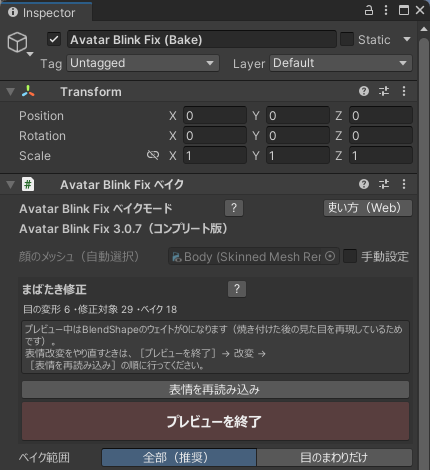
Right-click your avatar in the Hierarchy and choose [Avatar Blink Fix] → [自動修正(ベイクモード)] (Auto Fix – Bake Mode).
An Avatar Blink Fix object is added inside the avatar, and you can preview the baked expression. The right-click menu is displayed in Japanese.
If you already use Auto Fix (Recommended), press [Switch to Bake mode] in the Inspector.
Your selections and settings carry over.
② Check the bake range
By default, the BlendShapes you edited are baked together.
MMD BlendShapes and those unchanged from the avatar's original default values are not included automatically.
Use [Bake Range] if you do not want to bake edits outside the eyes.
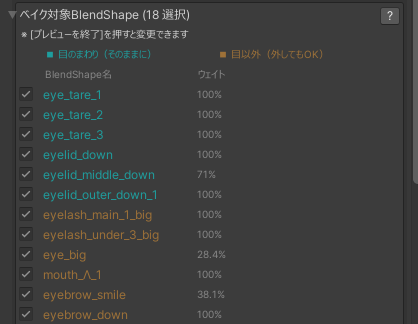
To select individual shapes, open [Advanced Settings] → [BlendShapes to Bake].
| Name color | What gets baked |
|---|---|
| Cyan | Eye-area shapes and shapes using values outside 0–100. Leave these selected because they are needed for the fix |
| Orange | Other areas, such as the mouth and brows. Uncheck shapes you do not want baked |
If the mouth's shape or movement looks wrong
Baking mouth edits together with other edits using [All (Recommended)] can make the mouth's shape or movement look wrong.
If this happens, try excluding the mouth BlendShapes from the bake targets.
- To exclude non-eye edits together: Set [Bake Range] to [Eyes Only]. Shapes using values outside 0–100 remain included even with this setting.
- To exclude individual shapes: Press [Stop preview], then open [Advanced Settings] → [BlendShapes to Bake]. Uncheck the orange items you do not want baked.
Changing [Bake Range] resets manual selections to the automatic setup.
Choose the range before adjusting individual shapes.
Leave cyan items selected.
After changing the settings, press [Preview the baked result] and check the expression and mouth movement.
③ Check the preview
Whole-face BlendShapes may prevent blinking from being fixed correctly even in Bake Mode.
If the fix also undoes your facial edits, see Whole-face BlendShapes.
Baked BlendShapes have a value of 0 during the preview.
The edited shape is baked into the mesh, so the avatar still shows the edited expression at value 0.
Press [Preview the baked result] to resume the preview.
Baking and fixing are applied at upload time even if the preview is OFF.
Redoing expression edits
Press [Stop preview] before adjusting the face's BlendShapes.
When you finish editing, press [Reload Expression].
See The Full Workflow for checks before and after uploading.
Using face tracking
Bake Mode includes FT eye-close BlendShapes in the fix by default.
Keep [Include in fix] selected and check how the eyes close.
See Using Face Tracking for the settings.
Restoring the avatar
Delete the added Avatar Blink Fix object.
The original mesh is not overwritten, so the avatar returns to its state before the fix.