Auto Fix (Recommended)
Use a matching preset to fix your avatar's blink automatically.
Finish your expression edits before running the fix.
① Run Auto Fix
Right-click your avatar in the Hierarchy and choose [Avatar Blink Fix] → [自動修正(推奨)] (Auto Fix – Recommended).
An Avatar Blink Fix object is added inside the avatar, and the fixed expression appears.
If the menu item is grayed out, use Manual Fix to select the required items.
The right-click menu is displayed in Japanese.
② Check the fixed expression
Select the added object to open its Inspector.
If the button says [Stop preview], the preview is ON.
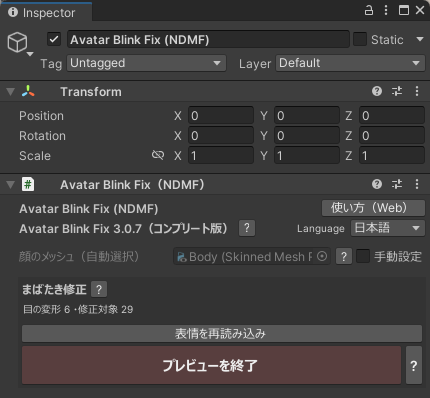
Check that the eyes close properly when blinking or winking.
The fix is applied at upload time even if you turn the preview OFF.
See The Full Workflow for checking expression animations before uploading.
Redoing your expression edits later
Turn the preview OFF before adjusting the face's BlendShapes again.
- Press [Stop preview] in the Inspector
- Edit the expression
- Press [Reload Expression]
You can also delete the object, edit the expression, then run Auto Fix again when you're done.
Running Auto Fix again without deleting the object
A dialog asks whether to replace the existing component.
Press [Replace] to rebuild the settings from the current expression.
Restoring the avatar
Delete the added Avatar Blink Fix object.
The original mesh is not overwritten, so the avatar returns to its state before the fix.
Other situations
Conflicts with expression animations
An expression animation that controls a BlendShape being fixed can cause the eyes to look wrong in-game.
If you want to keep the original expression animations unchanged, try [Switch to Bake mode].
Your settings carry over to Auto Fix (Bake Mode), which may reduce the breakage.
Note: Bake Mode is a Complete Edition feature. Use it for edits with values above 100 or negative values as well.
Using face tracking
Bake Mode is recommended when using face tracking.
Press [Switch to Bake mode] in the Inspector.
See Using Face Tracking for the FT BlendShape settings.
If a preset is missing for a supported avatar, see the FAQ.